GB WhatsApp Verification Code Not Received? How to Fix It
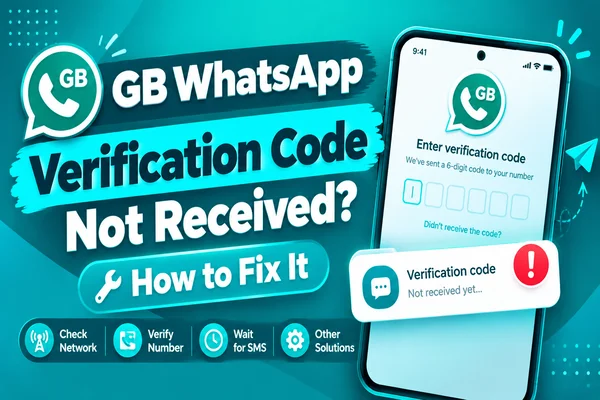
The final step is to receive the verification code, which enables you to use GB WhatsApp. Sometimes you don't get an SMS, the verification call does not recive, or the app continually displays prompts like "Couldn't send SMS," "Verification failed," and "Try again later." Such challenges make you feel frustrated when trying to use GB WhatsApp.
This article discusses possible causes of failing to receive a GB WhatsApp verification code and suggests ways to address these challenges.
Common Causes
The following are causes if you do not recive the verification code.
Poor Network Connection
If weak signal on your mobile phone, there is a risk that your verification code will not reach you. In such a situation, WhatsApp may not be able to send and verify your code.
Try this:
- Check your mobile signal.
- Go to another place where there is better network coverage.
- Restart your phone to connect to the network.
- Ensure that you are connected to the mobile network.
Blocking SMS
Some devices have a built-in spam filter, which blocks all SMS with strange content, including unknown verification SMS. Sometimes this is done by your carrier.
Check the following:
- Find the spam and SMS filter folders.
- Find out if any SMS filtering apps are installed.
- Check whether your mobile operator blocks any verification messages.
If you can, it is recommended to turn off SMS filtering during the verification process.
Incorrect Phone Number Format
Typing an incorrect phone number is the most common cause of verification failure. It means that even a single incorrect character in the phone number will prevent WhatsApp from sending a code to the correct device.
Before asking for a verification code, make sure that:
- The correct country code is selected.
- The type of phone number is correct.
- No additional zeros, spaces, or symbols are in it.
- The phone's SIM card matches the number you are verifying.
Issues with SIM Card or Carrier
The problem may be caused by an inactive SIM card or some service troubles. It may occur after you have changed your carrier, replaced your SIM card, or activated a new phone number.
To check whether the SIM card works properly:
- Send an SMS message to another phone.
- Receive an SMS test message from someone else.
- Make sure that you can both receive and send phone calls.
If these services are unavailable, get in touch with your mobile carrier to solve this issue before you try to verify GB WhatsApp.
Too Many Verification Codes Requested
Receiving too many verification codes in a limited time may result in a temporary security barrier. The purpose is to prevent misuse and ensure users' account safety.
After several requests to "Resend Code," WhatsApp may temporarily stop sending further verification codes. It is recommended to wait until the counter hits zero to request the code.
Outdated GB WhatsApp Version
The use of an outdated version of GB WhatsApp is another reason for verification failure after a server update by WhatsApp. The older versions may encounter some problems regarding SMS verification.
To avoid such issues:
- Install the latest version of GB WhatsApp.
- Delete corrupted installations of GB WhatsApp.
- Reboot your device after installation.
- Verify your phone number using the updated app.
Fix 1 – Request Call Verification Instead of SMS
If the SMS code does not recive within a few minutes, you may ask for a call instead. WhatsApp will call you and give you the six-digit code.
When to Use Call Verification
Call verification is useful when:
- The SMS messages get delayed.
- The mobile operator blocks the verification messages.
- You are roaming.
- There are any issues with sending SMS at the network level.
How to Get a Verification Call
You will need to:
- Write the phone number correctly.
- Wait until the "Call Me" button becomes active.
- Press "Call Me."
- Accept the incoming call.
- Enter the six-digit code.
If you don't receive the call, ensure that your phone receives incoming calls and the "Do Not Disturb" mode is not active.
Fix 2 – Check Airplane Mode Toggle Trick
A temporary network problem can also be the reason for late delivery of verification codes on your phone. Toggle Airplane Mode to reset your network connection and see if it solves the problem.
How to Use the Airplane Mode Trick
- Swipe down to open the Quick Settings panel.
- Switch on Airplane Mode.
- Wait for around 30 seconds.
- Tap to turn Airplane Mode off.
- Your phone reconnects to the mobile network.
- Ask for a new verification code.
Another option is to reboot your device once you turn off Airplane Mode.
Fix 3 – Verify Number Format and Country Code
An incorrect phone number most frequent cause of verification failure. The smallest error can prevent the code reciving to your device.
Double-Check Your Phone Number
Before requesting another code, make sure you:
- Select the right country.
- Entered the right country code.
- Entered the mobile number without any typing mistakes.
- There are no additional spaces or symbols before your phone number.
For instance, if you need to verify your phone number in Pakistan, choose Pakistan (+92) and enter your phone number using the appropriate international format.
Use the SIM Card You Are Verifying
Insert the SIM card containing the number you want to verify into your phone.
Fix 4 – Wait Out Rate Limits
If you are asking for verification codes several times in a short time, WhatsApp blocks further requests for verification codes for some time. Such an action by WhatsApp is called rate limiting.
Signs of Reaching the Limit
These include:
- Try again later
- Too many attempts
- Please wait before requesting another code
What to Do
- Leave the app open if you can.
- Do not request verification codes too many times in a short period.
- Do not use different versions of WhatsApp.
- Maintain a good internet connection.
Conclusion
GB WhatsApp verification problems are caused by a bad network, a wrong phone number, and verification limitations. Make sure that everything is correct to clear verification easily.