How to Transfer GB WhatsApp Chats to a New Phone
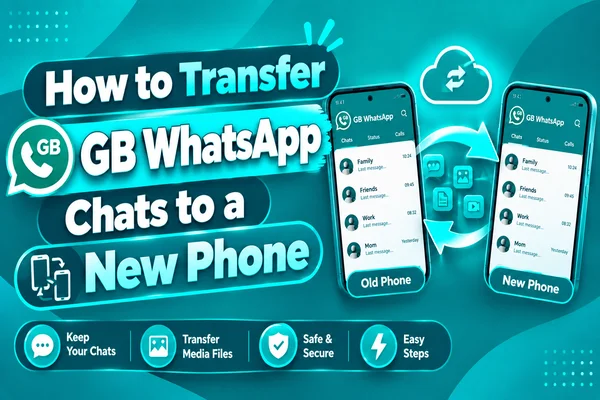
It is exciting to change your Android smartphone. However, many users worry about losing their GB WhatsApp chat history, pictures, videos, and other important information. This article will help you move your WhatsApp chat history to a new device.
Unlike the regular WhatsApp application, GBWhatsApp does not provide an option to make cloud-based backups automatically. Therefore, most users use local backup files on their device. This article covers all the necessary information on how to successfully transfer your GB WhatsApp data.
Before You Start (Backup Checklist)
To minimize the possibility of losing your chats and data when you transfer GB WhatsApp to another device, back up your data.
Perform Local Chat Backup
Launch GB WhatsApp on your old smartphone and make a new local backup of your chats.
- Launch GB WhatsApp.
- Click on the three dots menu.
- Go to Settings > Chats > Chat Backup.
- Click on Backup.
- Wait for the procedure to be completed.
By creating a fresh backup, you will ensure that all your latest messages are available during the transfer.
Back Up Your Media Files
Along with your chats, you should back up the GBWhatsApp folder with the help of your device's File Manager. In most cases, it contains:
- Photos
- Video files
- Voice notes
- Documents
- Stickers
- Status downloads
You can copy this folder to your computer, SD card, USB flash drive, or cloud storage.
Check These Before Proceeding
Make sure that:
- Your backup was performed successfully.
- You remember the phone number that your GB WhatsApp account is registered with.
- You have sufficient space on the new phone.
- You have a good battery life on both smartphones.
- You need to install the right version of GB WhatsApp.
Method 1 – Local Backup Transfer via File Manager
Local backup transfer is the most efficient method of transferring GB WhatsApp chats from an old Android device. Your backup files available on your Android phone without any high-speed internet and cloud storage services.
Find the Backup Folder
Using the File Manager, find the GBWhatsApp folder that contains all backup files. On different Android versions, it's located at:
- Internal Storage > GBWhatsApp
- Android > Media > com.gbwhatsapp
It includes such files as:
- Chat databases
- Media directories
- Images
- Video recordings
- Audio files
- Documents
Transfer the Backup
Copy the entire GBWhatsApp folder to another safe place. For this purpose, use these ways as:
- A USB cable connecting your device to a computer
- A memory card
- A USB with OTG support
- Wireless file transfer apps
Transfer the Folder to the New Phone
Connect your new device to your computer or select the same method of transferring as you did previously. Move the GBWhatsApp folder to the correct place on your new phone’s internal storage.
Based on the Android version of your phone, move it to:
- Internal Storage > GBWhatsApp, or
- Android > Media
Installing GB WhatsApp
After you copy all the files,
- Download the newest suitable GB WhatsApp APK.
- Install GB WhatsApp.
- Don’t start the application until the folder is successfully copied.
Method 2 – Cloud-Based Transfer
In some versions, GB WhatsApp can only perform partial cloud backups, whereas other versions do not allow any cloud backups. If cloud backup is possible in your version, it gives another option for you to create a backup copy of your chat records.
How to Create a Cloud Backup
If its possibility:
- Go to Settings -> Chats -> Chat Backup.
- Connect your Google account.
- Create a backup file.
- Be patient and wait until your file gets uploaded.
Restoring on the New Device
After installing GB WhatsApp and copying the backup folder, you can proceed with restoring your chat history.
Restore Your Chat History
- Launch GB WhatsApp.
- Ensure that you have the same phone number on your new device.
- Provide the necessary permission for accessing storage.
- If the backup is detected by the app, click on Restore.
- Wait until the process is complete.
After restoring, make sure that:
- Your chats are displayed.
- Photos and videos are displayed.
- Voice notes are played.
- Documents and stickers are accessible.
Troubleshooting Failed Transfers
When GB WhatsApp does not find your backup, or there is a problem with the process, there are several ways to fix that.
Verify Backup Folder
- Ensure that you have put the GBWhatsApp folder in the right place and have not changed its name during transferring.
Phone Number Check
- Make sure you use the same phone number which used during verification. Using diffrent number can cause restoring issues.
GB WhatsApp Update
- Sometimes, the older version of the app may not restore the backup. Using the Latest version of GB WhatsApp resolves this issue.
Storage Permission Check
If your storage permission is denied, GB WhatsApp is not able to find the backup. You need to go to the settings menu, select apps, then GB WhatsApp, and allow storage/media access.
Retry the Transfer
If the backup is still not detected, copy the GBWhatsApp folder again from your old phone and try to transfer your backup.
Conclusion
Moving GB WhatsApp messages from one phone to another requires no difficult steps if you are well prepared for it. Creating a new backup copy, moving the GBWhatsApp folder, and restoring it during installation will enable you to move all your messages, media content, and settings without any loss of data. Making use of the latest version of the GB WhatsApp application and ensuring that the same phone number is used will also increase the success of your migration.